fmCheckMate Modes
Convert/Transfer, Analyse/Fix or Edit/Transform your FileMaker work
fmCheckMate has a few different modes of operation to match your current activities.

The current mode is shown in the top right corner of the app window (default is the Small XML Editor).
⌘9
fmCheckmate Settings Wizard
Clicking the current mode indicator opens the fmCheckMate Settings Wizard & mode chooser. Alternatively select menu fmCheckMate > Settings… or press ⌘9.
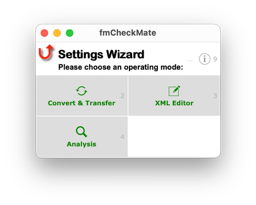
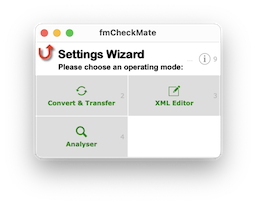
You can choose between three main modes of operation:
| Use mode | When you want to |
|---|---|
| Convert & Transfer | transfer code across a remote connection between FileMaker deployments |
| XML Editor | edit the XML, see, search, change or transform it |
| Analysis | check your code - particularly layouts - for errors |
⌘2
Convert & Transfer Mode
In Convert and Transfer mode when you convert the clipboard between FileMaker objects and fmxmlsnippet text fmCheckMate does not change to the editor view but stays on the home layout
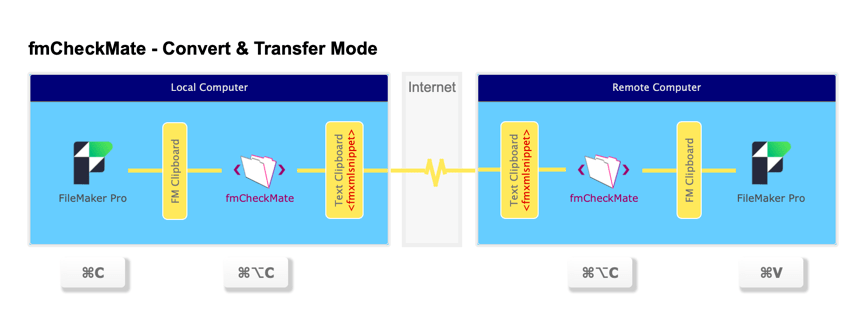
If you want to transfer code across a remote connection between FileMaker deployments, you can use the Convert & Transfer mode in fmCheckMate on both machines to quickly move code between them with just a few clicks.
⌘3
XML Editor Mode
The XML Editor mode is about working with the XML.
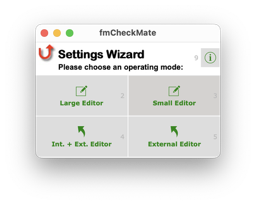
There are four different XML Editor modes to choose from, depending on your needs:
⌘2
Large XML Editor
Interested in the XML?
Use the large XML editor for a full-screen XML editing experience.
⌘3
Small XML Editor
Not inteerested in the XML? Just get on with it!
Use the small XML editor for minimal impact on your workspace.
⌘4
External XML Editor
Want the full power of a real xml editor?
Use the external XML editor option to export and edit the xml in your default xml editor.
⌘5
Int. + Ext. XML Editors
Never could make a decision?
Use both internal and external XML editors.
⌘4
Analysis Mode
In Analysis mode when you convert the clipboard fmCheckMate immediately shows the list of analysis functions, so you can choose one to run on the XML.