fmWorkMate Settings
Plugins, Options & co.
Use the fmWorkMate Settings to setup fmWorkMate.
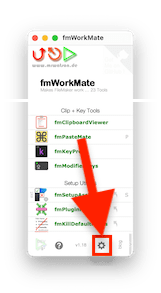
Open the Settings
- Press CMD9
- in fmWorkMate (or, indeed, in most of MrWatson’s Tools)
- Select
Settings - from the
fmWorkMatemenu - Click the
⚙️button - at the bottom of the fmWorkMate tool list.
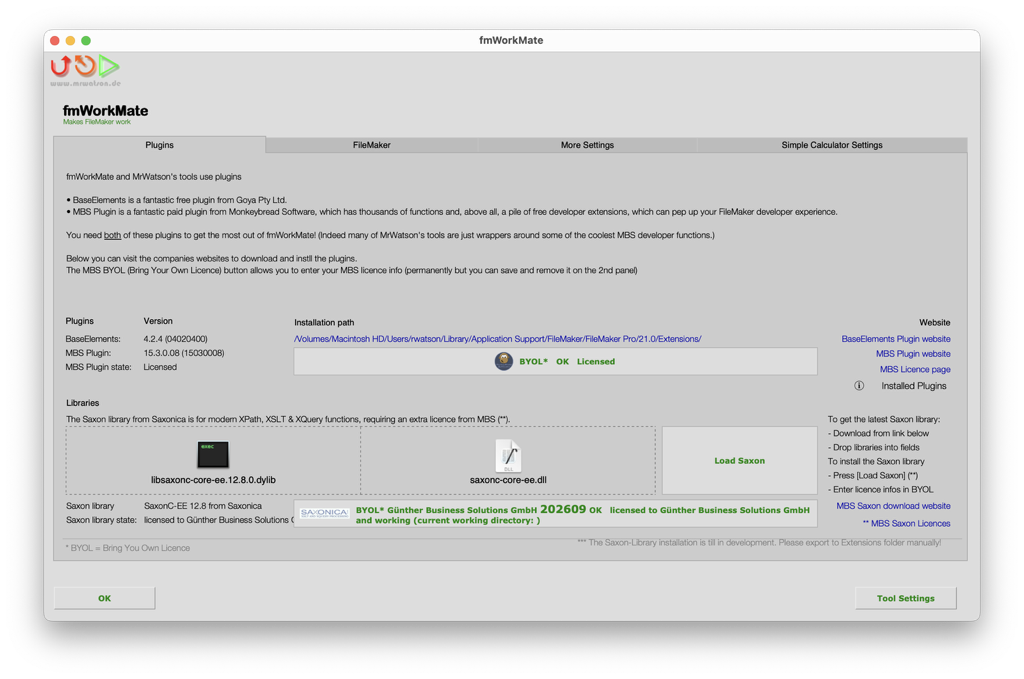
In the Settings dialog you can
- Install the Plugins that fmWorkMate needs
- and optionally install the MBS Saxon extension for advanced XML processing
- autofocus FileMaker when generating code.
- set various options, like keeping fmWorkMate open.
- add your own functions in the Simple Calculator Settings
Install the Plugins
You’ll need
- The Base Elements Plugin
- The MBS Plugin
- Download the Base Elements plugin and place it in FileMaker’s extensions folder.
- Download the MBS plugin and place it in FileMaker’s extensions folder.
-
License the MBS Plugin
- Press
[MBS BYOL] - to register the MBS plugin (BYOL = Bring Your Own License)
- Paste
- your
MBS ("Register" ; … )function into the first field in order to automatically fill the fields - Or use the fields
- to enter your licence details manually
[Register MBS]- to register the plugin for this session.
- Press
-
Store the License permanently and safely
- Navigate
- to the second panel using the slider dots at the bottom
[Store License]- to store the MBS registration details permanently
[Clear Data]- to remove the MBS registration details from the fields
[Clear Stored License]- removes the permanent MBS registration details, should you change your mind later.
Install MBS Saxon extension, if desired
If you wish to use modern XPath, XSLT or XQuery technologies, you’ll need the Saxon library extension for the MBS plugin.
fmWorkMate comes with a (possibly outdated) copy of the Saxon libraries. If you think this is the case, or if the Saxon library is not present in the container filed, first download the latest copy of the Saxon library and place it in the appropriate field on the settings page.
The installation process is still in development (and buggy), so if neessary please export the Saxon library file and manually place it in the extensions folder.
Once the Saxon library is in place in the extensions folder…
- Press
[Load Saxon] - to load the Saxon library
- Press
[Saxononica BYOL] - to register the Saxon library
- Paste your
MBS ("Saxon.Register" ; … ) - function into the first field in order to automatically fill the fields, or
- Use the fields
- to Enter your licence details manually
- Press
[Register] - to register the extension for this session.
Autofocus FileMaker
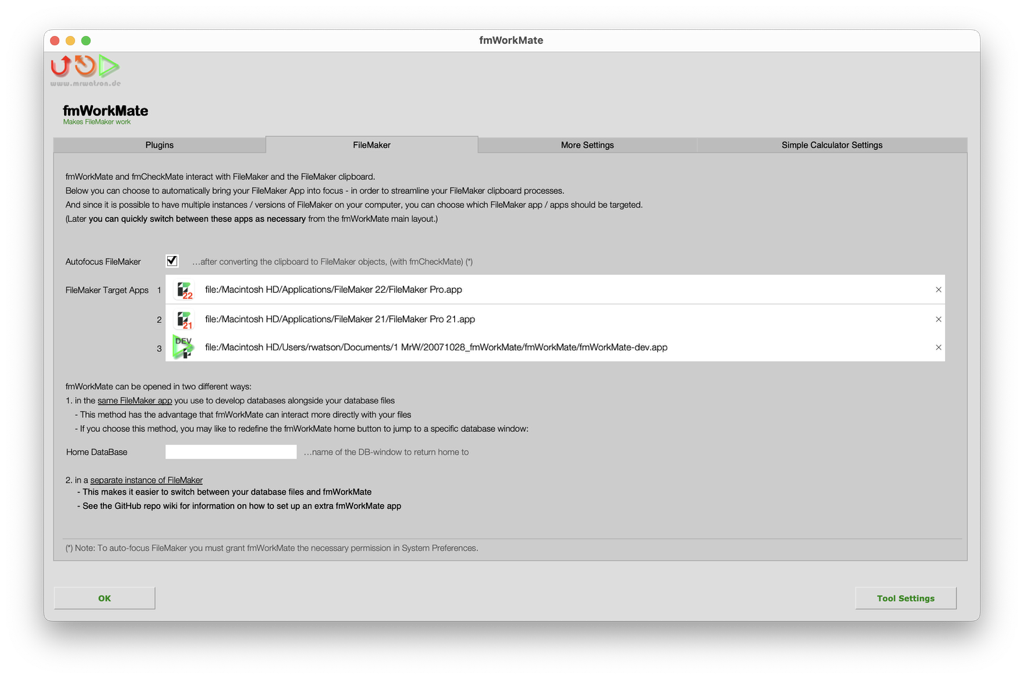
When generating code in fmWorkMate it’s possible to get fmWorkMate to bring the FileMaker application of your choice to the foreground automatically.
On the FileMaker tab,
- Select
[x] Autofocus FileMaker, if you want to bring FileMaker back to the foreground automatically, When you generate some code in fmWorkMate. - Choose the FileMaker you want to target for your development work.
More Settings
- Keep fmWorkMate open
- Select
[x] Keep fmWorkMate openif you want fmWorkMate to stay open when opening tools.
- Select
- Backdrop
- Select
[x] Backdropto add a backdrop in the given colour whilst working in fmWorkMate. - Great, if you want a clear desktop, but, honestly, this is only really useful for screenshots of fmWorkmate. :D
- Select
Simple Calculator Settings
Here you can add your own functions to the fmSimpleCalculator tool.
The functions here reachable from the Simple Calculator by just entering an f.