
Install fmWorkMate
There are different versions of fmWorkMate available, depending on your operating system.
- fmWorkMate is designed primarily for macOS where the MBS Plugin can work its integration wonders and where it has been extensively tested through daily use.
- For Windows there is an older limited runtime version available … or … maybe you have time to help with the windows version?

fmWorkMate for Mac

Install the latest release on a Mac
To install fmWorkMate, simply
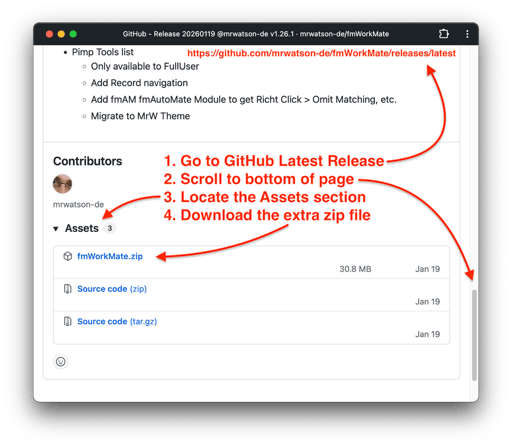
- Download the latest release of fmWorkMate(*)
- Unzip the archive
- Move the
fmWorkMatefolder to yourApplicationsfolder (or wherever you like to keep your apps) - Double-click the
fmWorkMate.fmp12file to launch fmWorkMate in FileMaker Pro
(*) Want to install the latest cutting-edge version, or need more help? See our Downloading Stuff from GitHub help page.

fmWorkMate for Windows
On windows you have two options:
- Install the old Windows runtime version of fmWorkMate
- It is no longer actively maintained, but is still available for download.
- Use the limited functionality (80% of the tasks you need)
- Copy the clipboard back and forth to/from your Mac to use the full functionality.
- Read on below for installation instructions.
- Install the Mac version,
- use the limited functionality that works (~80% of the tasks you need daily work)
- help me get it working properly on windows
- report any issues you find on the GitHub Issues page
- Thank you, if you do this!
- Go for it: install the latest macOS version of fmWorkMate
Window users - please help me get fmWorkMate working on Windows properly by testing and reporting any issues you find on the GitHub Issues page

Install fmWorkMate-Archive-Win on Windows
This old windows runtime version has more limited functionality, is no longer actively maintained, but is still useful and available for download.
To install the old fmWorkMate Windows version:
- Download the fmWorkMate Windows runtime version from the Archive Windows Runtime Version on GitHub
- Click
Code>Download ZIP
- Click
- Unzip the
fmWorkMate-Archive-Win-master.ziparchive - Then unzip the
fmWorkMate_Win_20140113.ziparchive that it contains - Move the
fmWorkMatefolder to your preferred location, such as to theProgram Filesfolder (but anywhere will do). - Double-click the
fmWorkMate.exefile to fmWorkMate - Right Click the fmWorkMate tab in the windows task bar and select
Pin to taskbarfor easy access in the future.
Once installed proceed to Setup fmWorkMate