
Setup fmWorkMate
fmWorkMate Settings + App
When setting up fmWorkMate there are three main tasks:
- deciding what FileMaker to open fmWorkmate with - see fmWorkMate App Setup below
- setting up fmWorkMate itself - see fmWorkMate Settings
- making sure you have all the tools you need - see Install MrWatsons Tools
fmWorkMate App Setup
fmWorkMate is simply a collection of FileMaker files that you need to open in FileMaker.

a) Quickstart - Just open fmWorkMate in FileMaker
The quickest way to get started is to open fmWorkMate in your normal FileMaker Pro installation.
This has both advantages and disadvantages:
+You can integrate fmWorkMate and your solution more tightly+By using fmIDE you can jump from tools directly to things in your FileMaker IDE, for example- in [fmLogAnalyser] you can jump straight to broken code in a single click.
-It can, however, be a bit fiddly switching between fmWorkMate and your solution files-Closing your solution may close fmWorkmate as well.
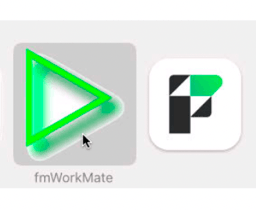
b) fmWorkMate App - A dedicated FileMaker Pro installation
A good alternative is to set up a dedicated FileMaker Pro installation for fmWorkMate.
+You can switch between your solution files and fmWorkMate by switching apps in the usual way-You can’t necessarily jump directly from fmWorkMate to things in your solution files
For a real App feeling give the FileMaker Pro copy the fmWorkMate name and icon
- On Mac
- Just duplicate your FileMaker Pro.app, rename it to
fmWorkMate.app, put it in your fmWorkMate folder and give it the fmWorkMate icon. - On Windows
- Either use the old windows runtime app, or, as far as I know, you can only run fmWorkMate separately by using a different FileMaker version

c) Smart starting with fmLaunchPad
Expert tip!
The problem with multiple FileMaker Apps, is that they don’t know which files to open.
With fmLaunchPad you can get each FileMaker App to open its main file automatically. 😍